

Using your events calendar
If you are not already using the built-in events calendar, it really is worth considering.
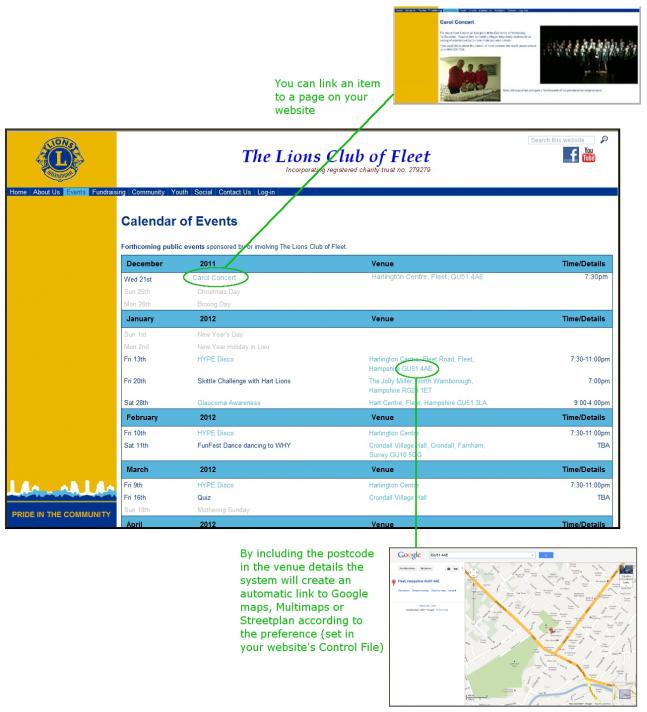
- The table is neat, clear and benefits from links to further information elsewhere on your website and external maps (Google maps, Streetmap, etc).
- It is also self-updating - no past events on show.
- Best of all, it is easy to update using the simple form.
Adding a calendar to your website
Choose a page, or create either a dedicated menu entry or sub menu entry. On the new blank page click on the events icon  . The icon will now appear on the page, click save and a calendar will appear.
Adding an event to the calendar
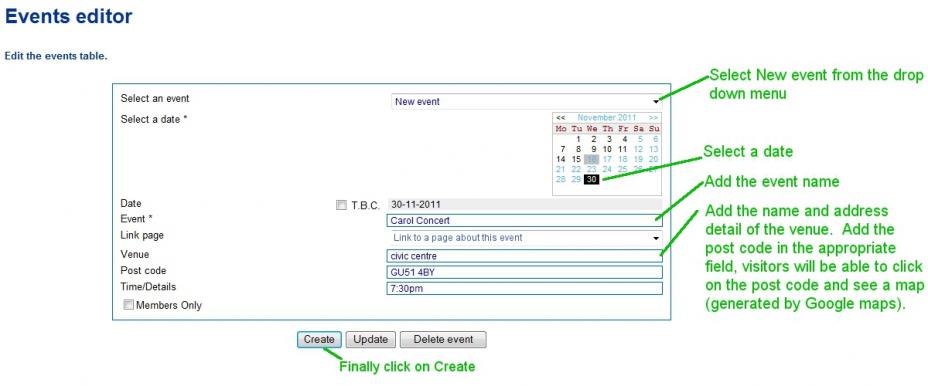
Go to the Members list of options and select Update Your Events Table.
The first field asks Select an Event - select New Event.
Using the arrows >> on the calendar move through the months until you find the correct month, point at the appropriate date in the month and click. The number will then be highlighted.
In the field Event you need to type in the name of the event.
Using the postcode
Including the postcode in the postcode field automatically embeds a hyperlink to an online map with the location highlighted. If you don't know the postcode of the venue it really is worth looking it up on www.royalmail.com You can select which online map to use (Google, Street Map or MultiMap) in the Manage Control File.
Using the Link page
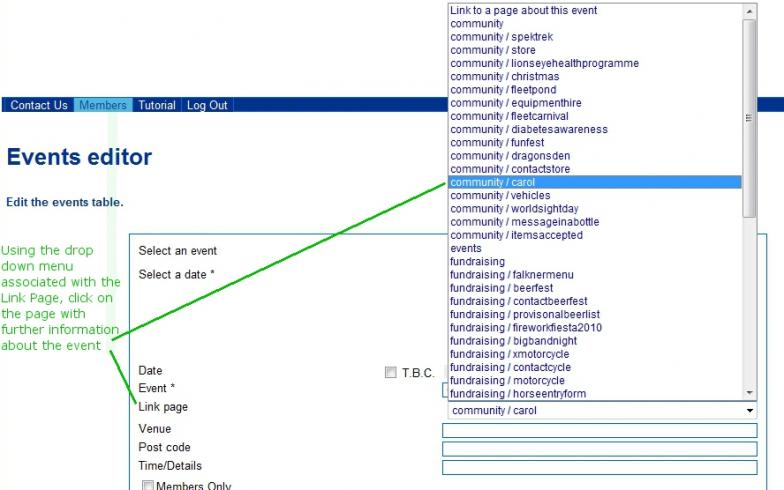
The next line asks if there is a Link Page, this is the page on the website associated with the event, if there is, you can set a hyperlink to it. A fundraising activity such as a fireworks display will no doubt have information on prices, times and maybe competitions on the day; or a theatrical group might have more information on an event with such information as the cast, timings and synopsis. Using the drop down menu select the page on your website that includes this information. If you haven't got any more information at the time you are adding the event, ignore this question, you can always go back later and select the event and add information.
Additional fields
There are two more fields that you can define. Do this in Manage Control File, in the box headed General, there are two fields Event Label 3 and Event Label 4. A Lions/Rotary/Round Table club might name these fields Venue and Time for their events calendar; a group whose events take place in the same place eg a theatre might use the venue field (because it remains the same for every event) as a description so that there can be a few words to describe the performance (a comedy, a drama, a poetry reading, etc).
Important note
When you change any detail on an existing entry it is important to click on the Update button not the create button.
Useful shortcuts
Click on the month to jump 3 months. Click on the date to move 1 year forward, click again to move back 1 year.
Include Common Events?
In the Manage Control File there is a box called Include these dates in event tables, select uk holidays if you wish them to be included or deselect the field if you don't want to include them. The UK holidays mentioned are: Christmas Day, Boxing Day, New Year's Day, Good Friday, Easter Monday and the bank holidays - May, Spring and summer. There is a second tick box for notable dates, such as Mother's Day, again tick or untick as required.
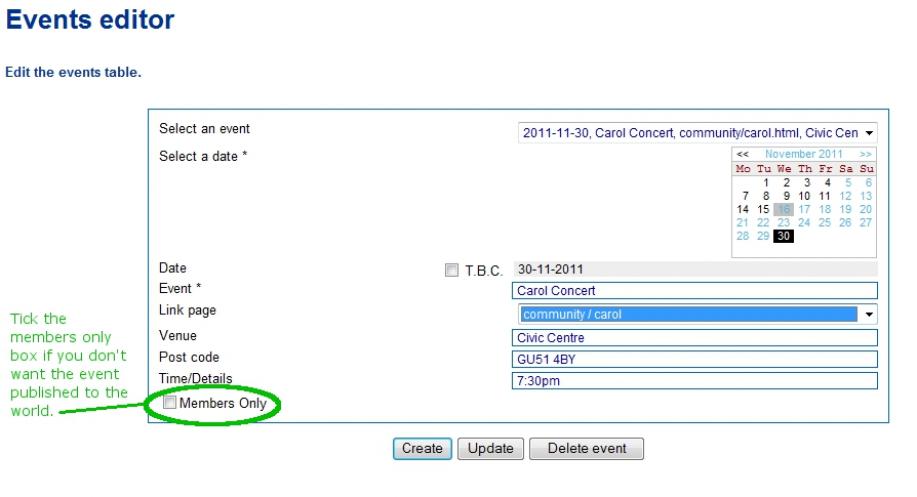
Visible to members only
Entries can be set to be read by logged in members only or published to the world.
The last question on the Update Your Events Table asks Members Only? Tick if you want this event to be seen only by members who have logged into the website. This is useful if you have members-only meetings or if your club hosts any members-only social events - you don't want the whole world arriving at the chairman's garden party!